 Sedam Staging
Free · 3 images
Sedam Staging
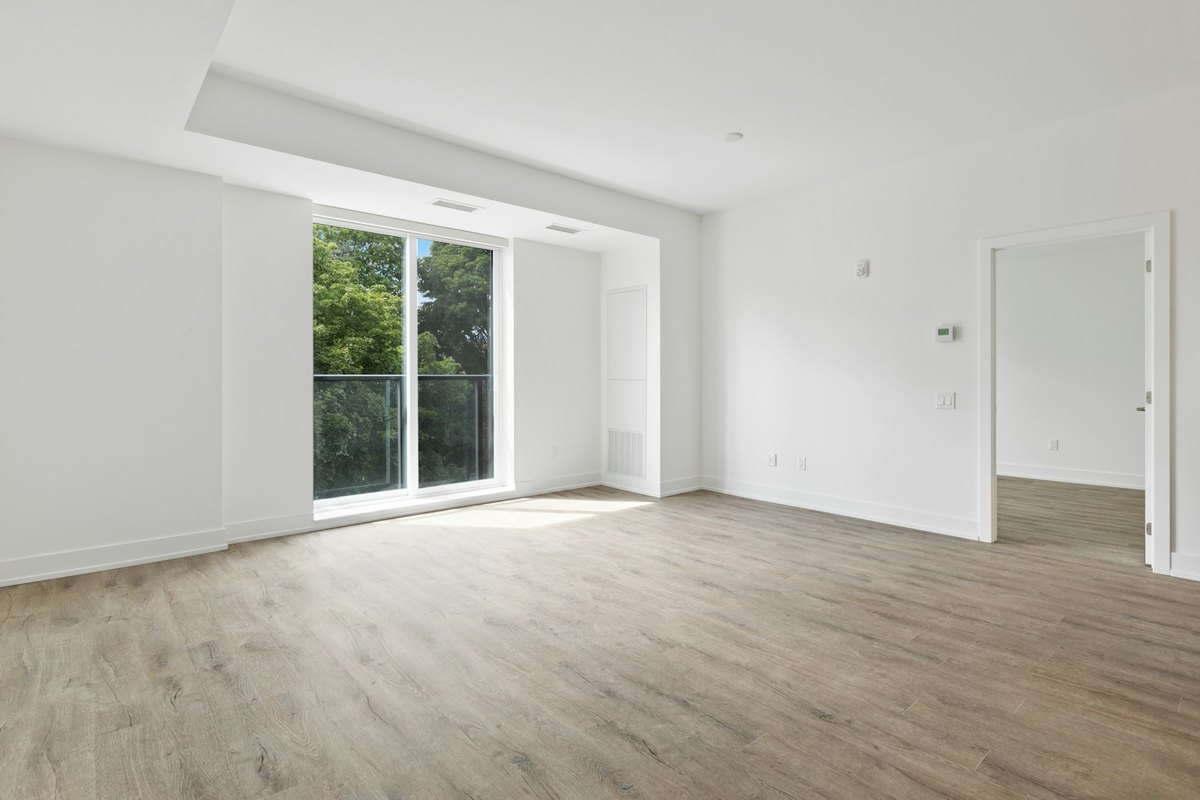
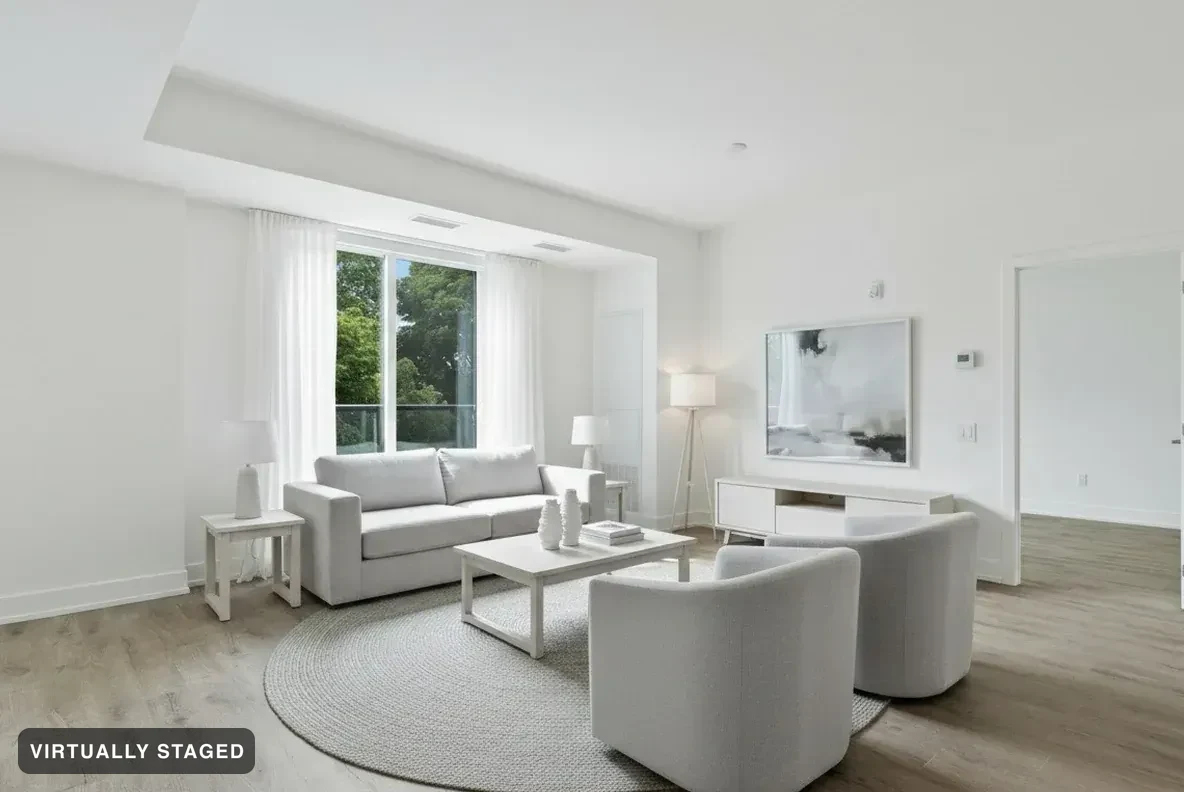 Your photoStaged
Upload your listing photos. Every render is checked against your original before you ever see it — walls, windows and floors never change.
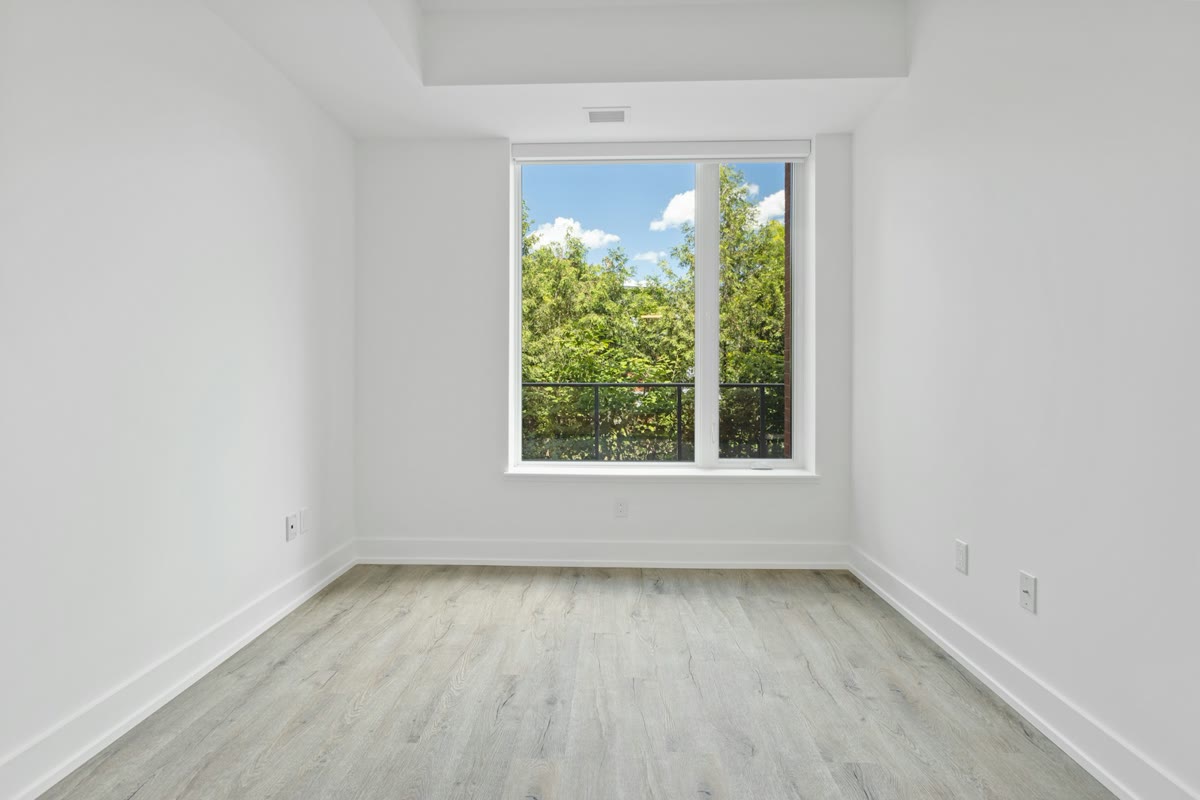
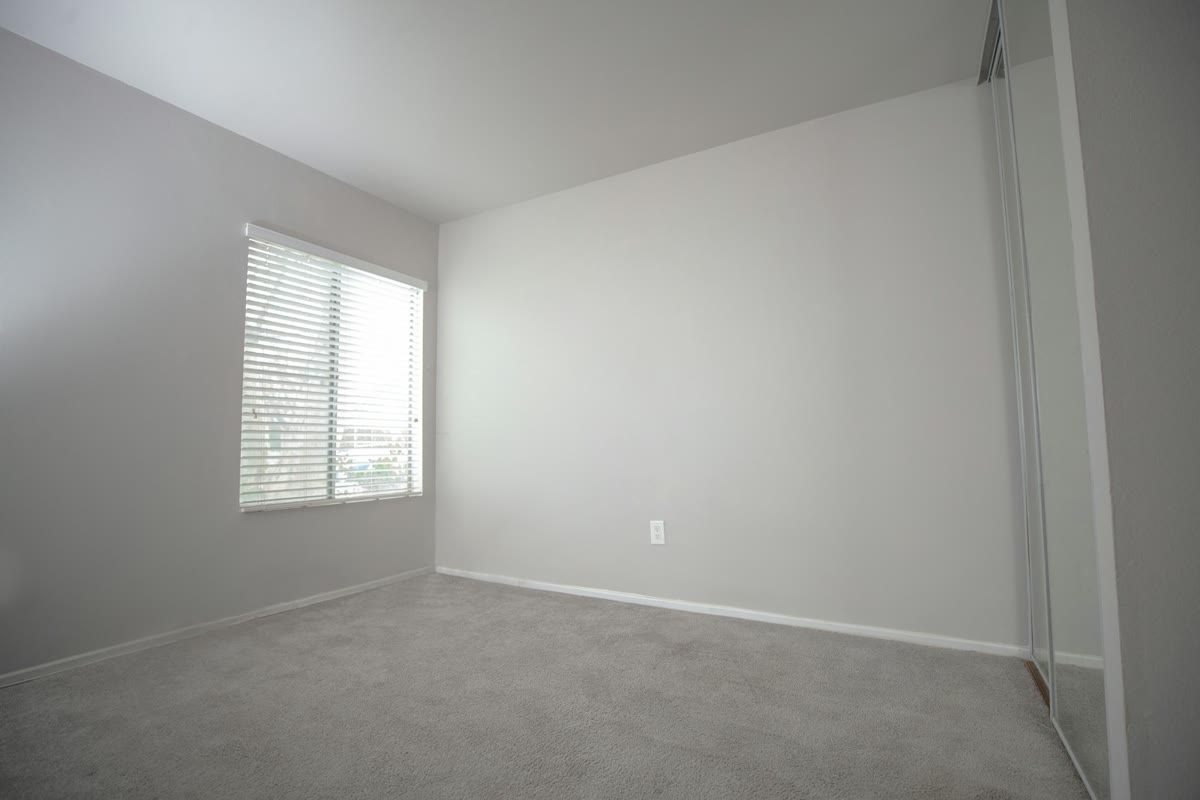
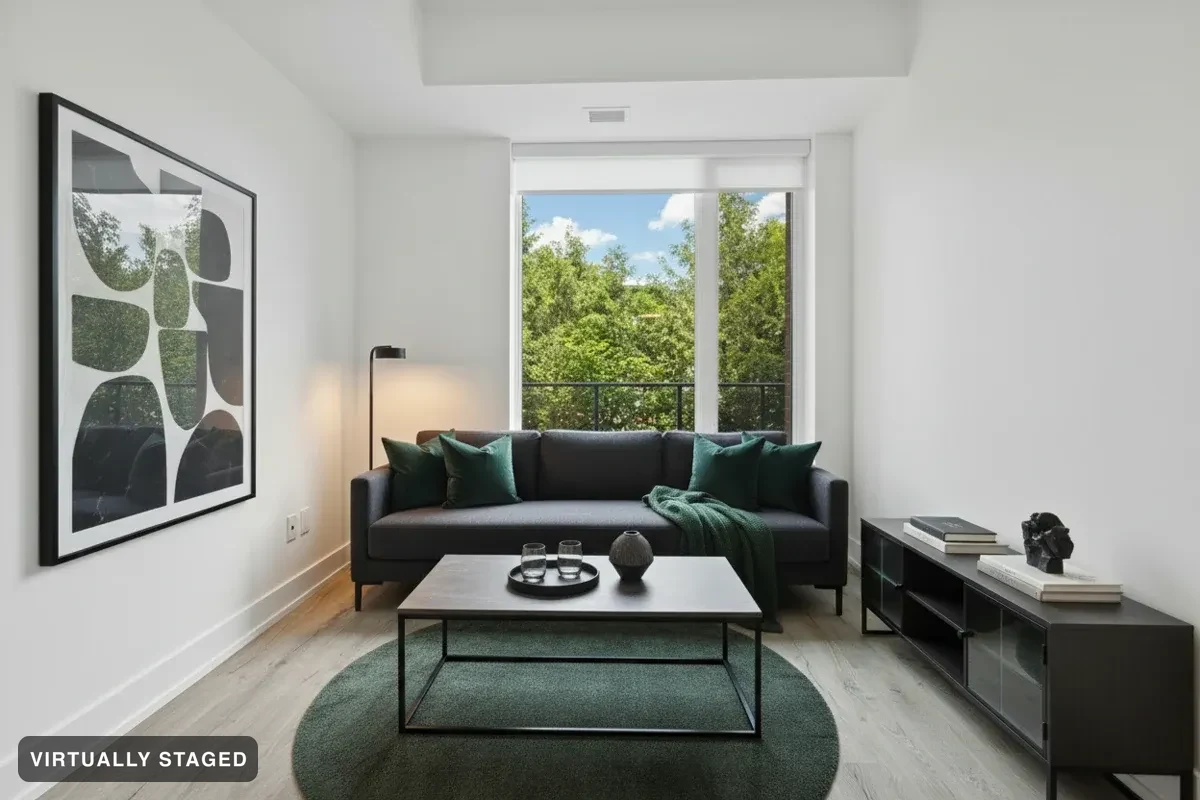 BeforeAfter
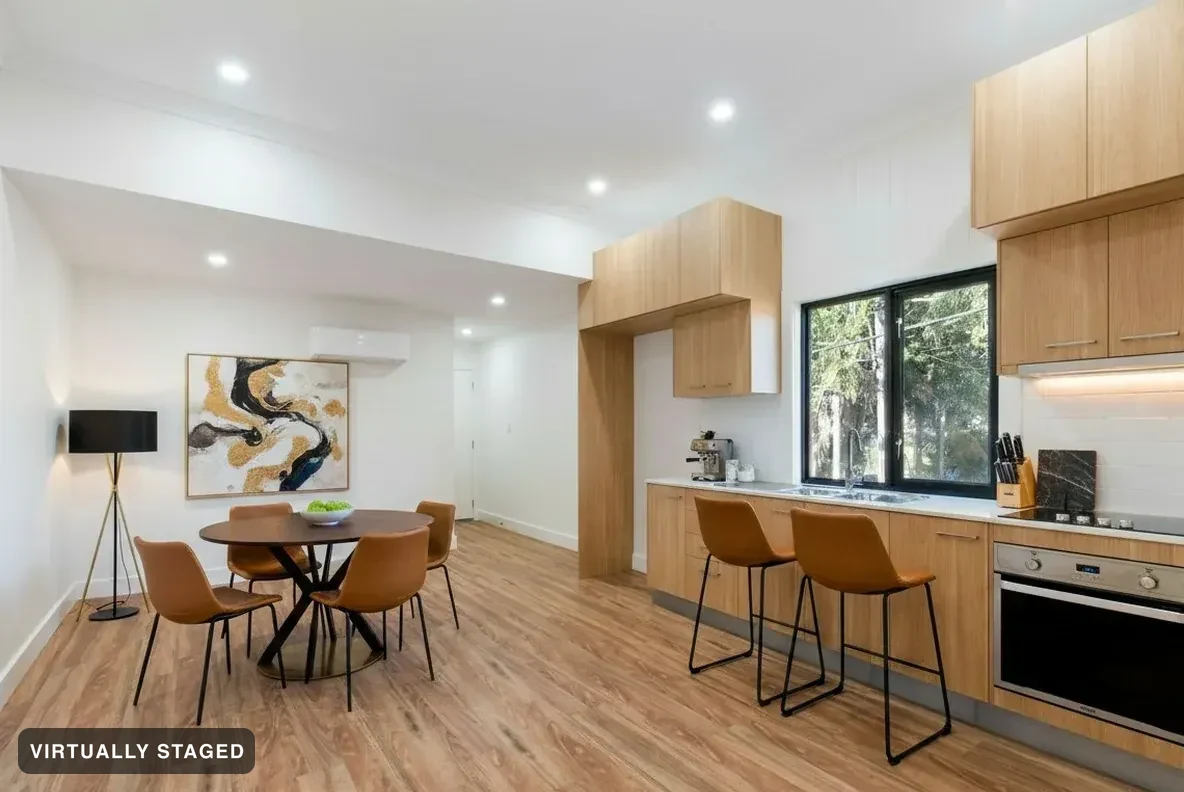
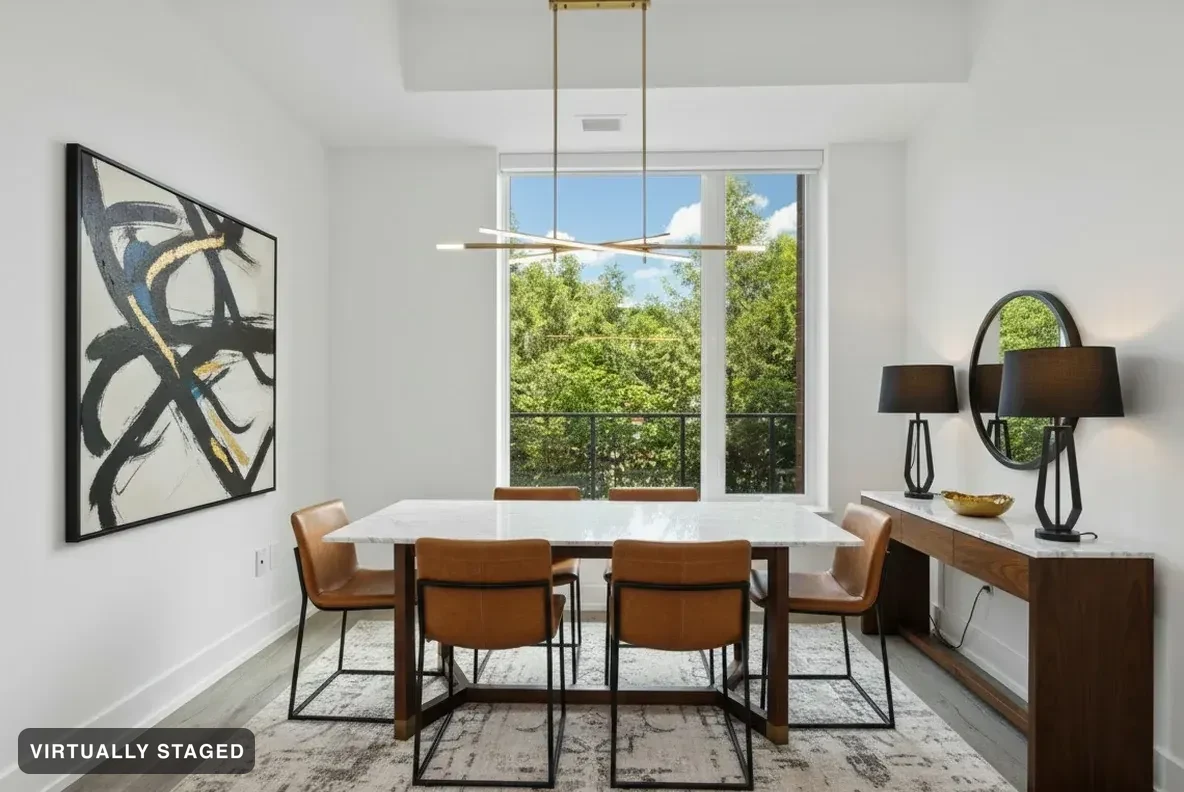
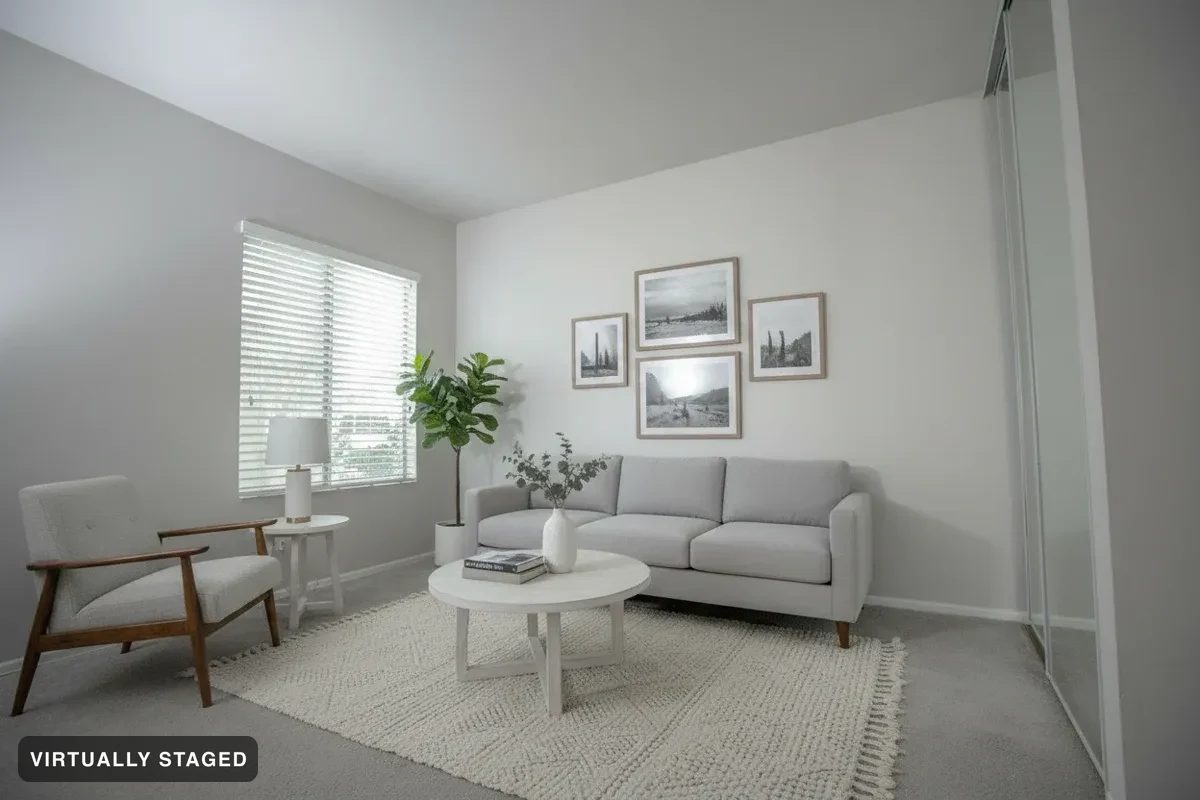
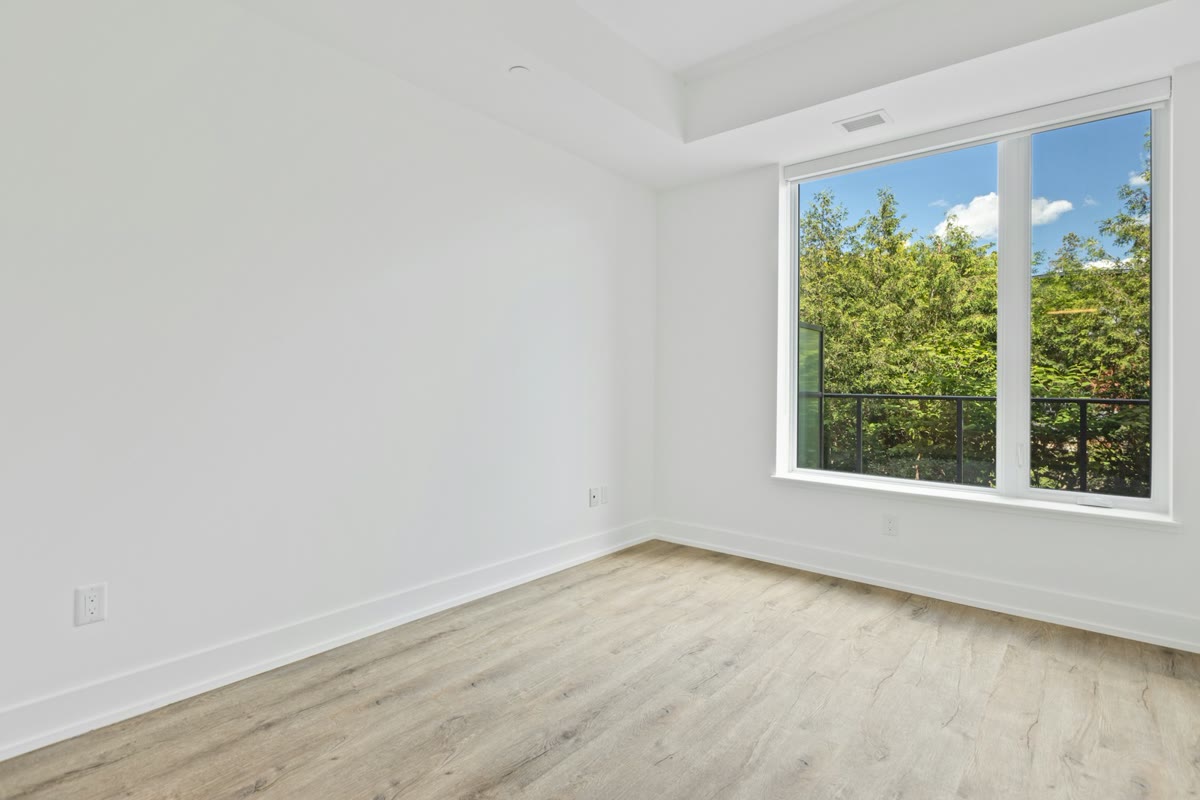
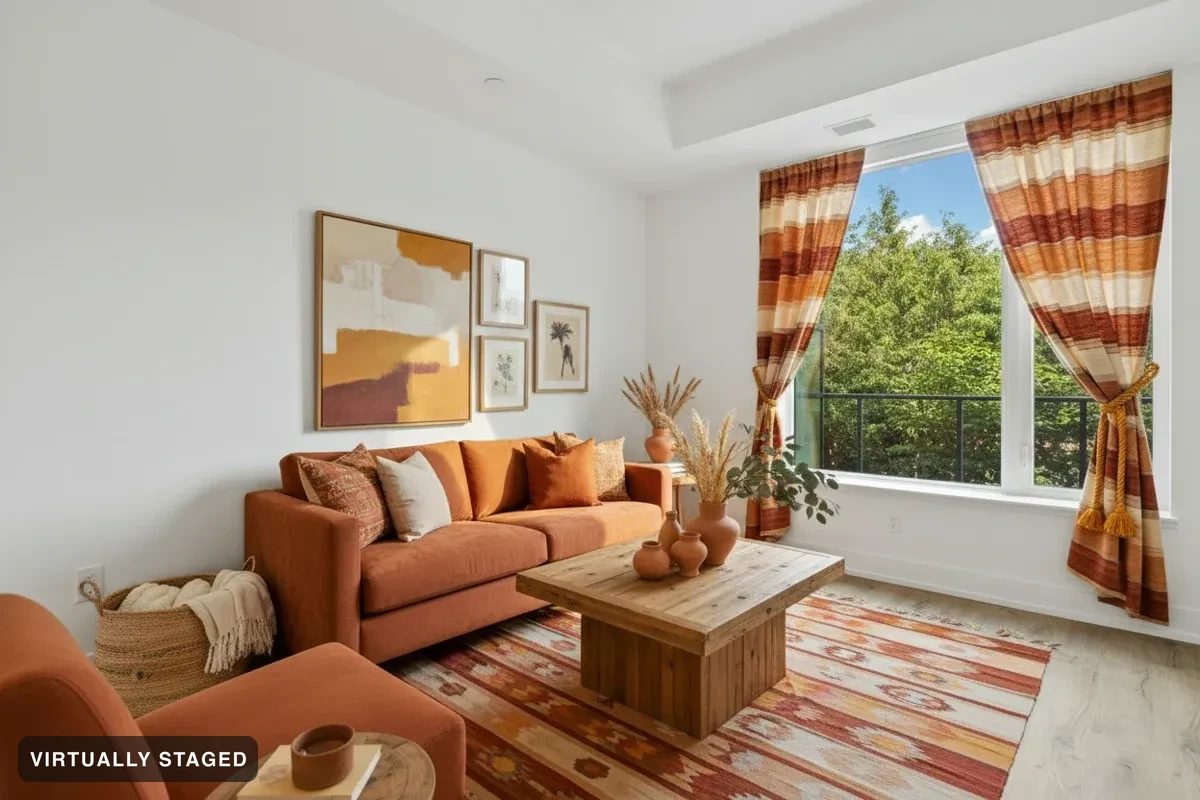
Furnish the empty rooms. Walls, windows and floors never change — every render is labelled and ships with your original, built for California AB 723 and the CREA REALTOR® Code.
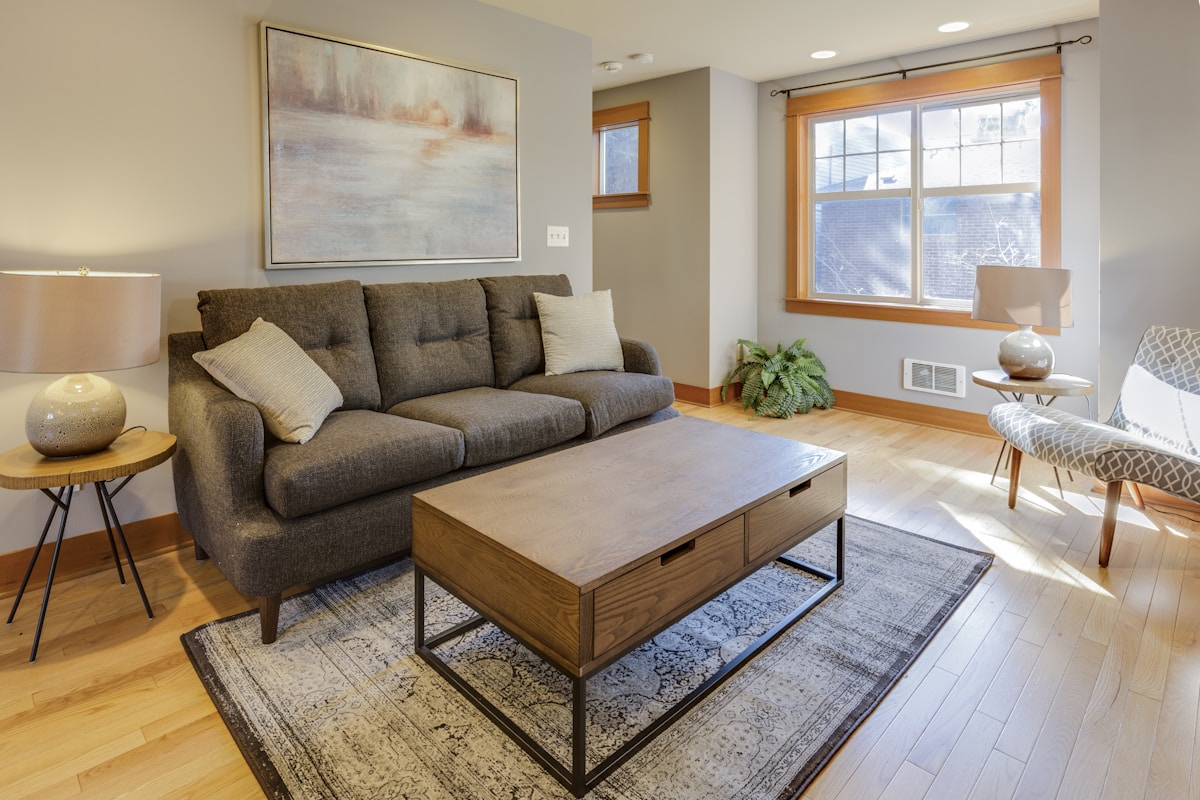
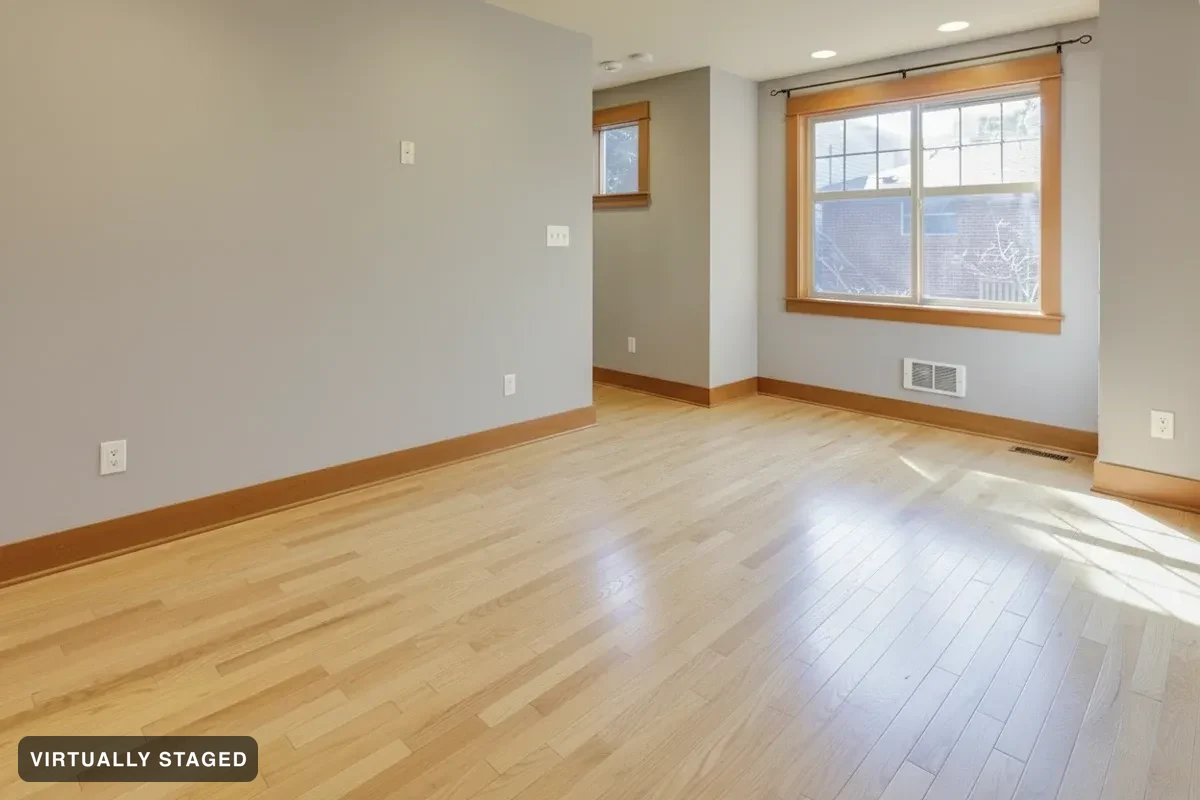 BeforeAfter
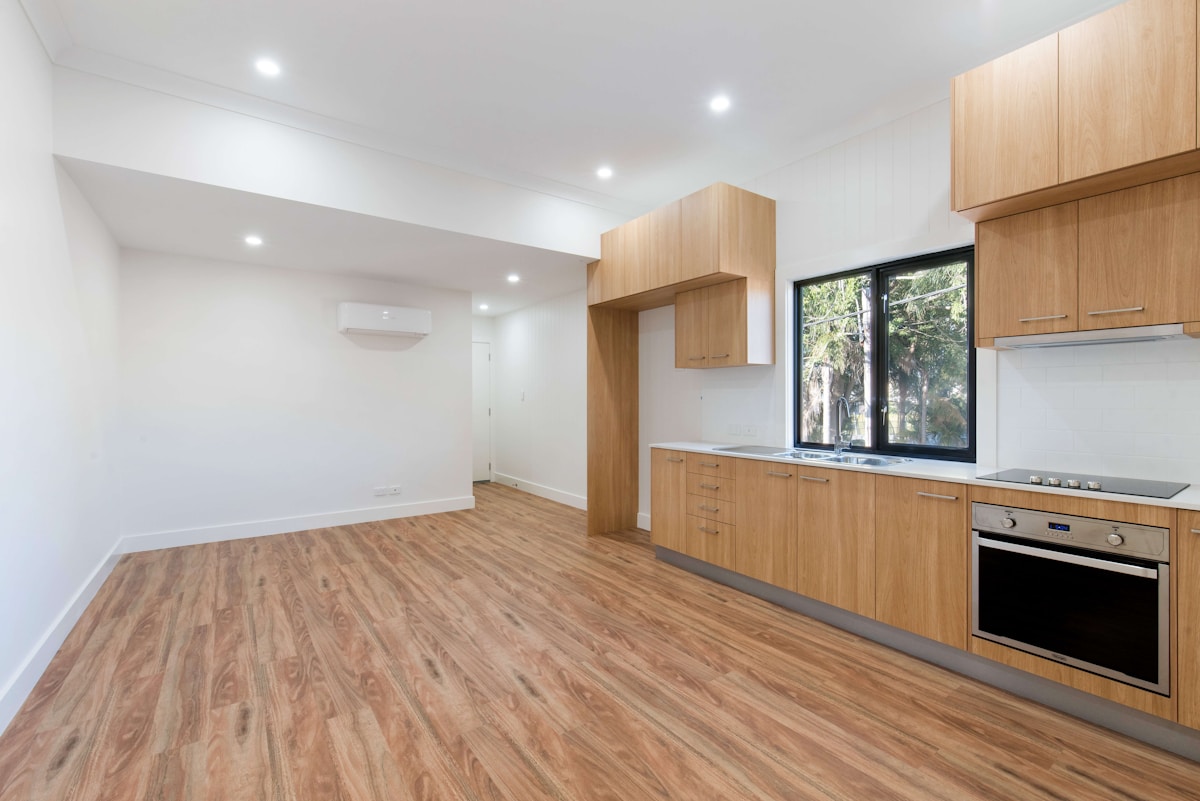
Empty the rooms. Built-ins stay where they are.
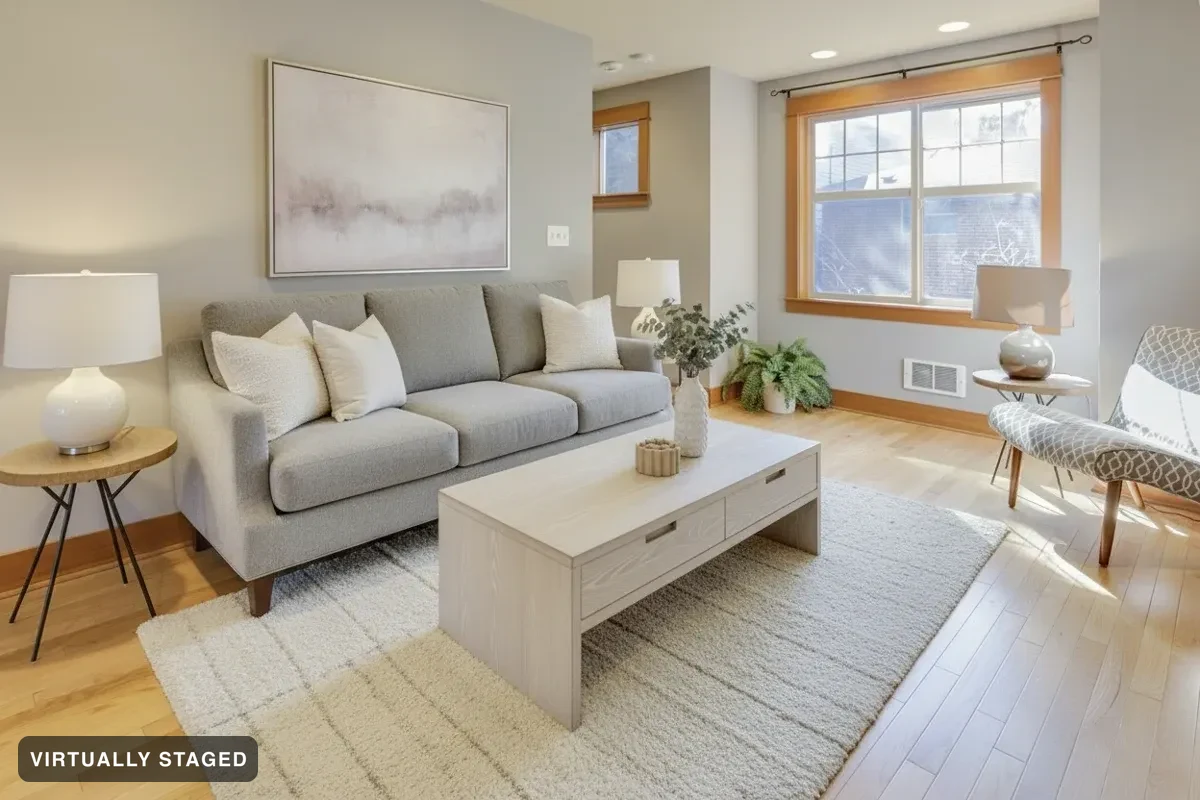 BeforeRestyled
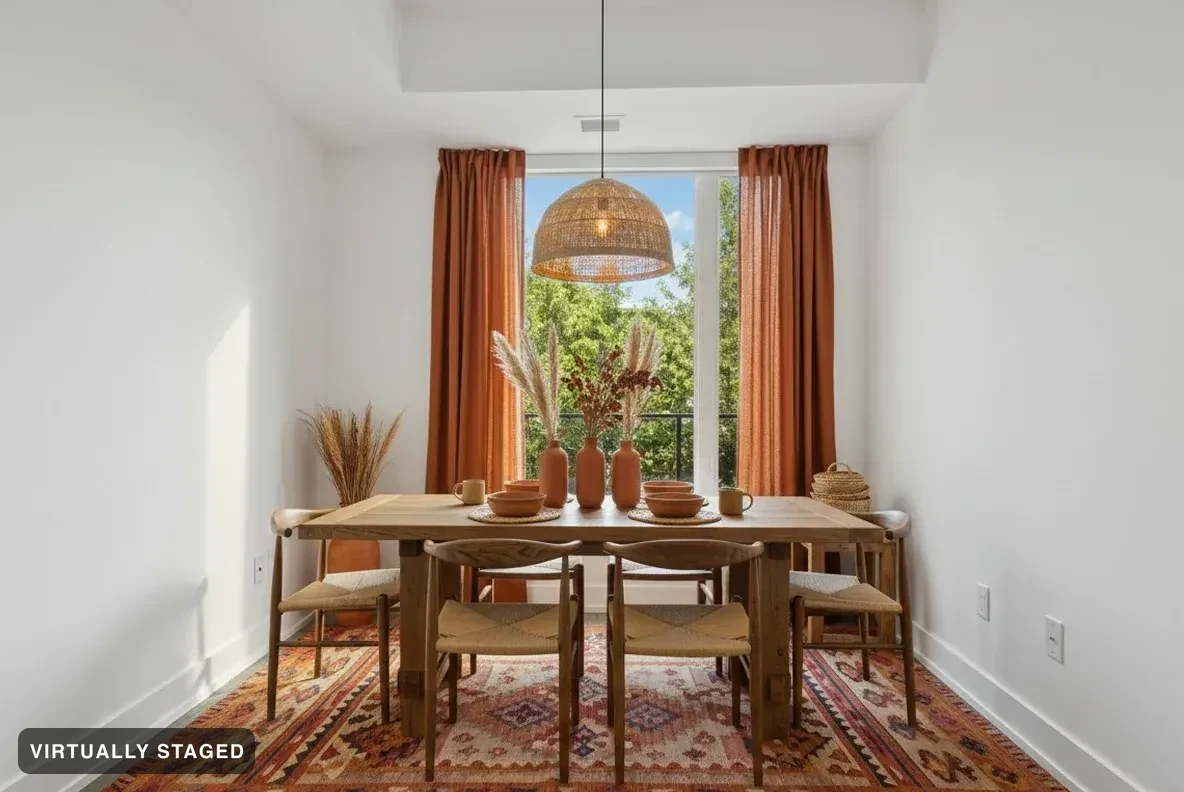
Swap the furniture. Keep the room.
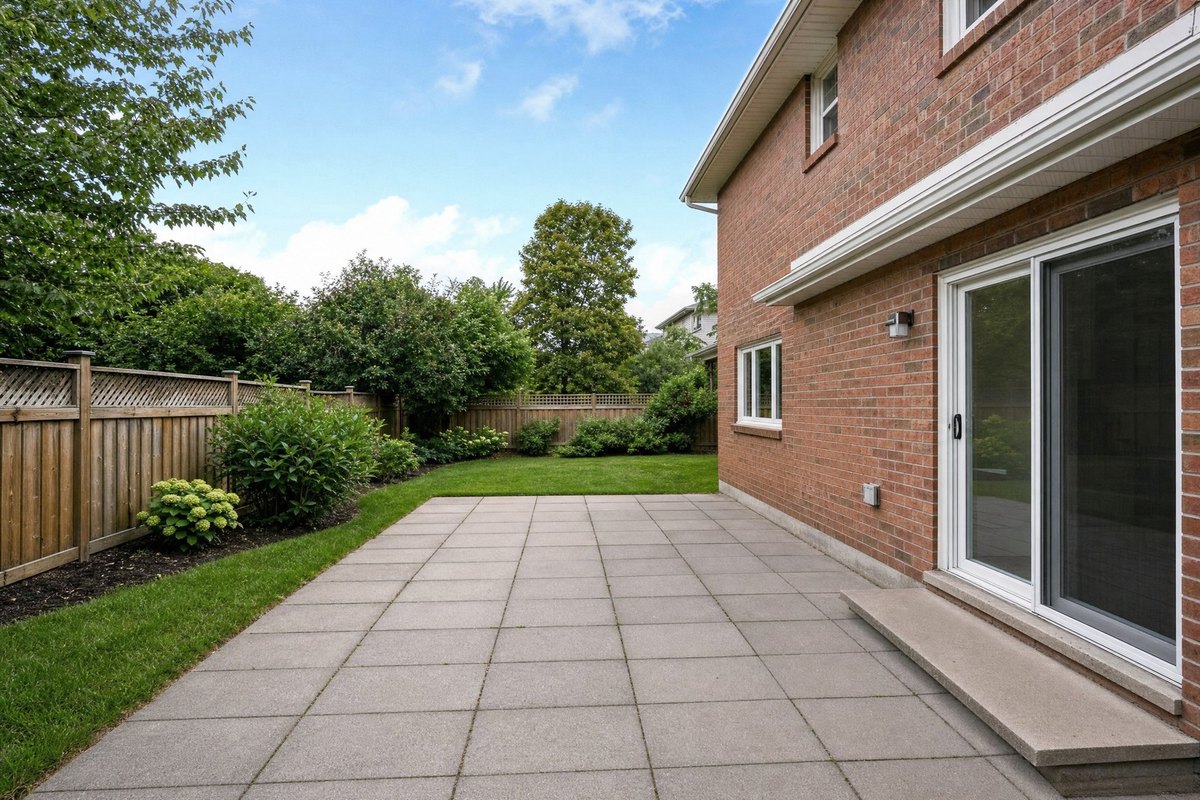
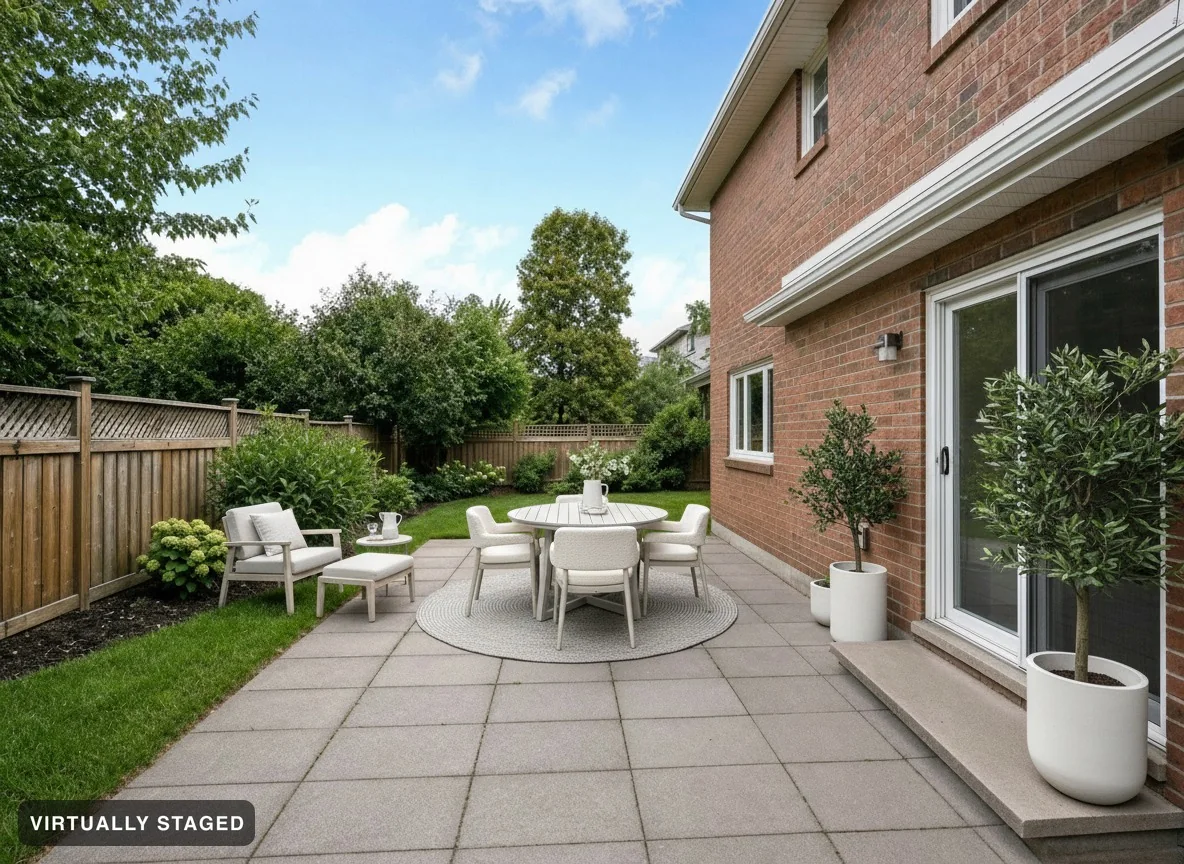 BeforeAfter
Dress the terrace, patio or garden. The building stays the building.
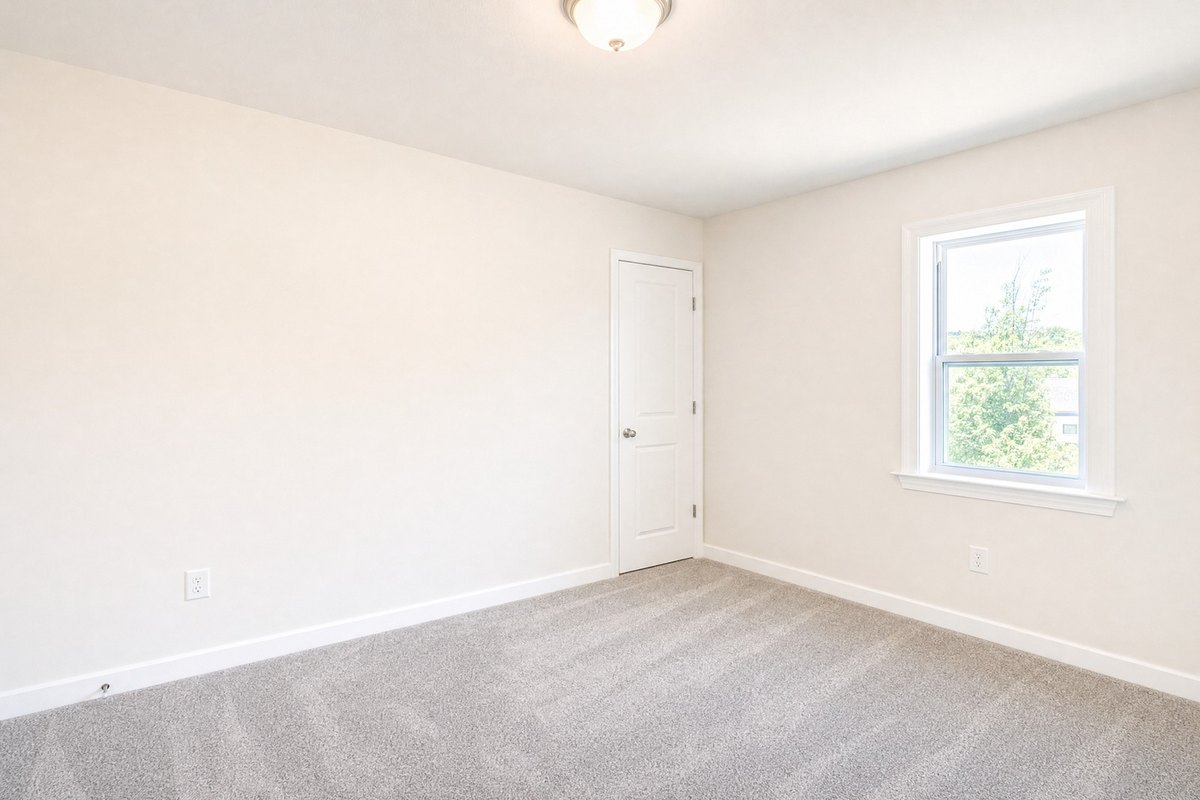
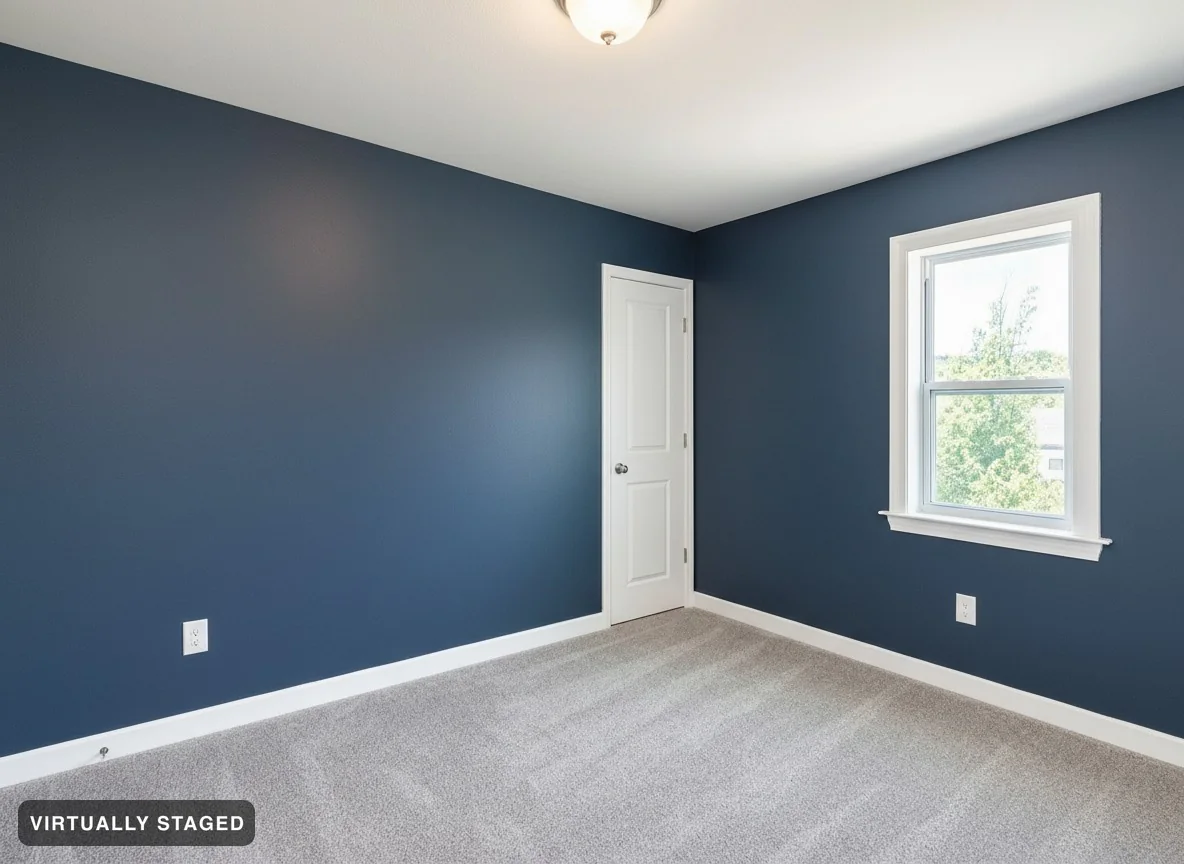 BeforeAfter
See white walls turn navy blue. The room stays the same.
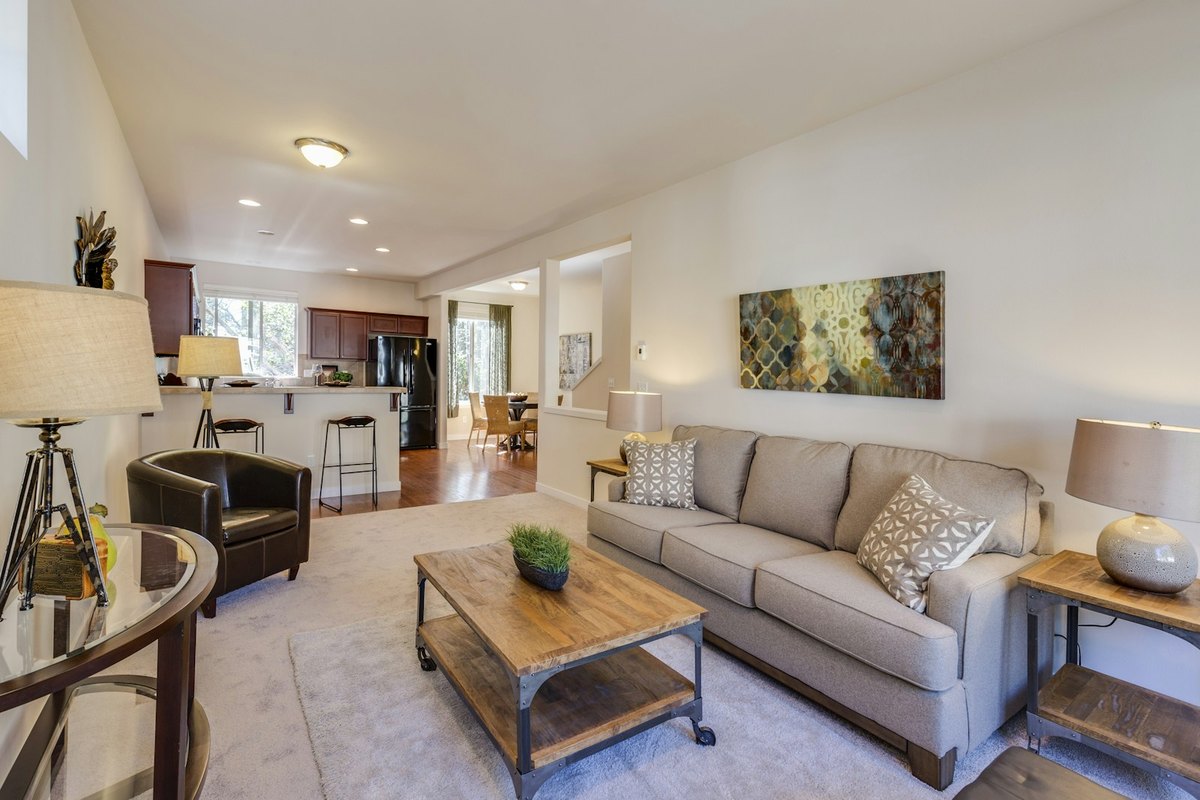
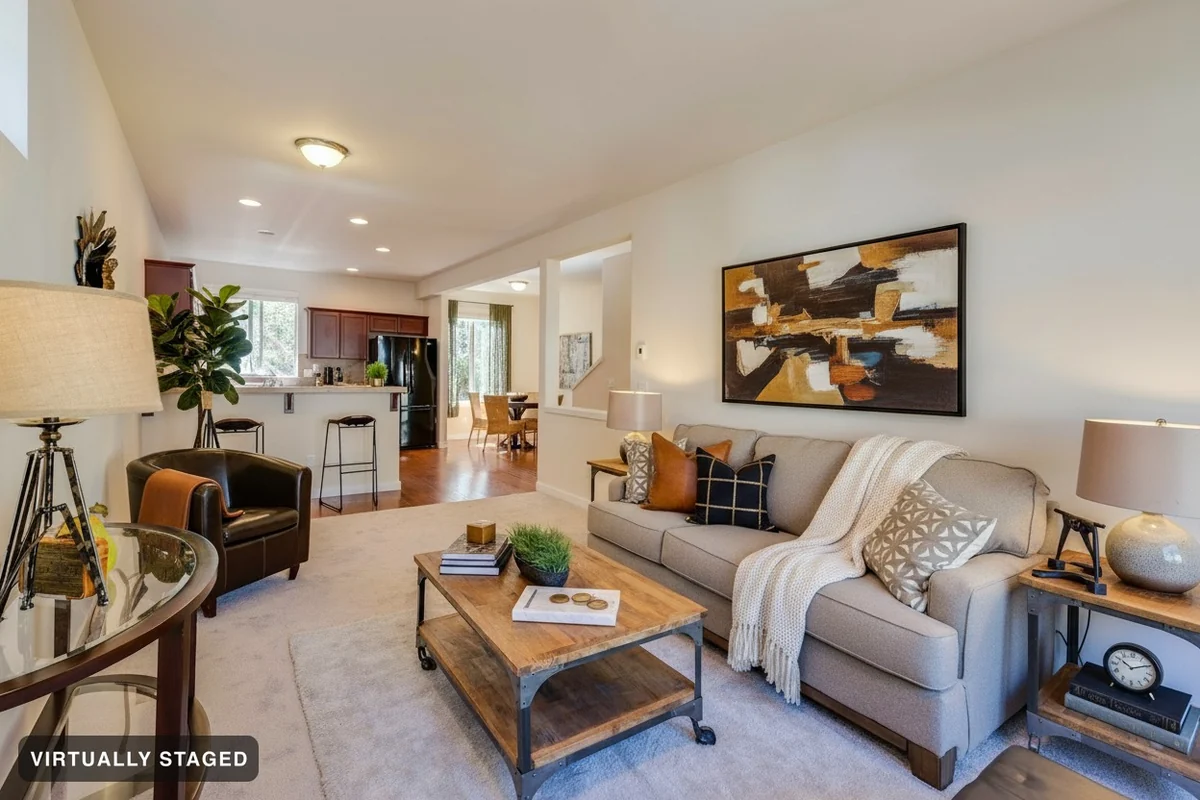 BeforeAfter
Add rugs, lamps, cushions, art or plants. Keep your furniture.
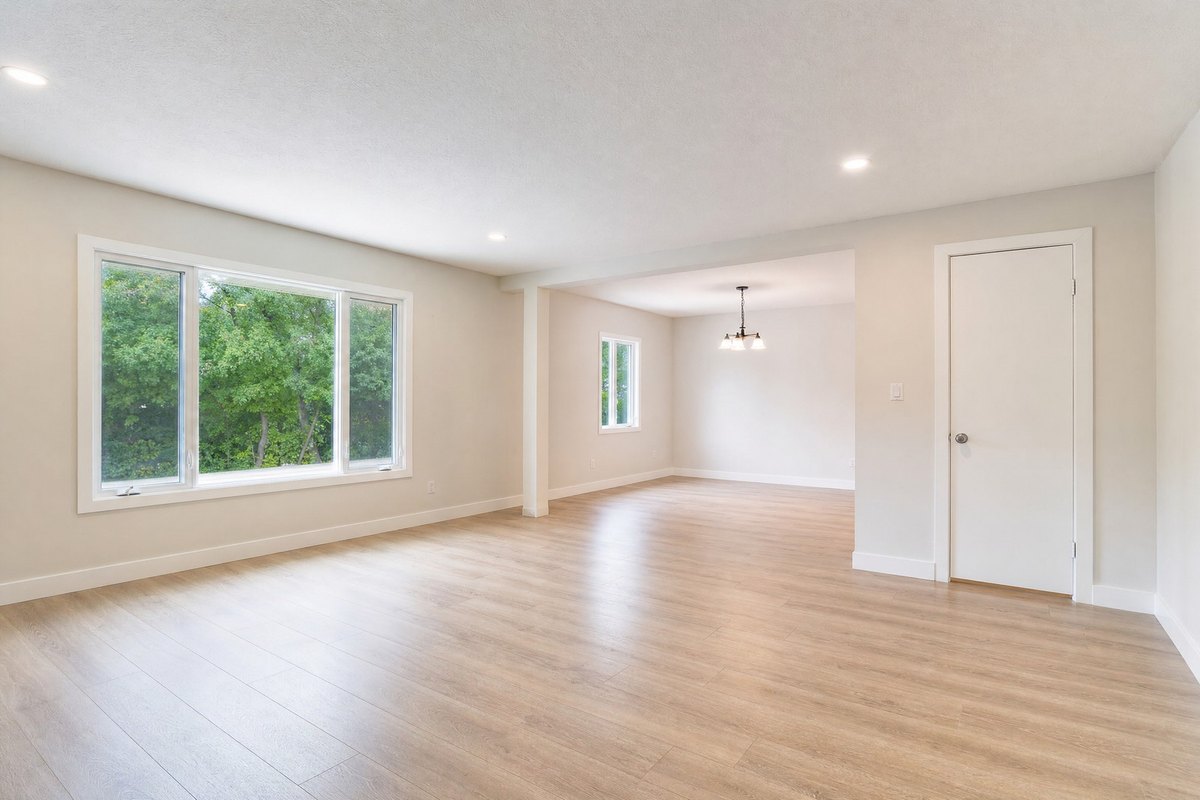
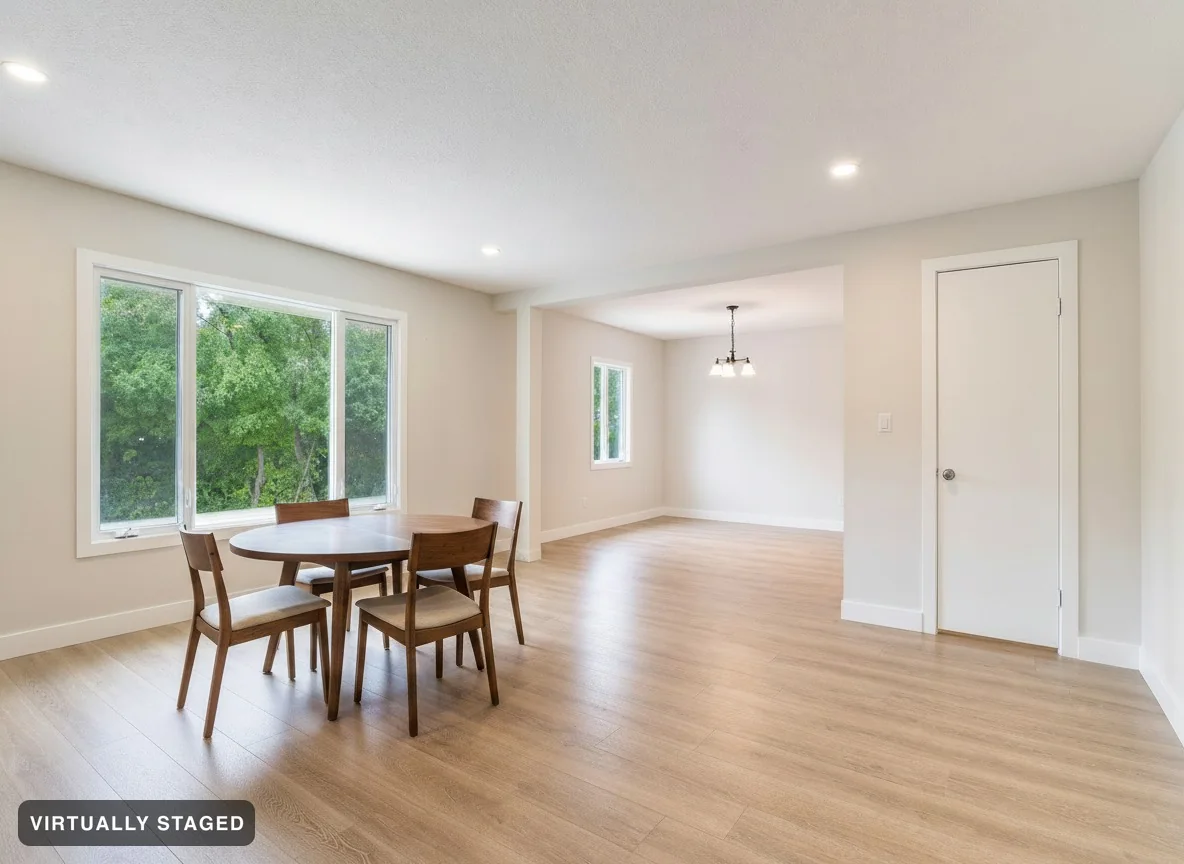 BeforeAfter
Ask for a round dining table and four chairs, or write your own idea.
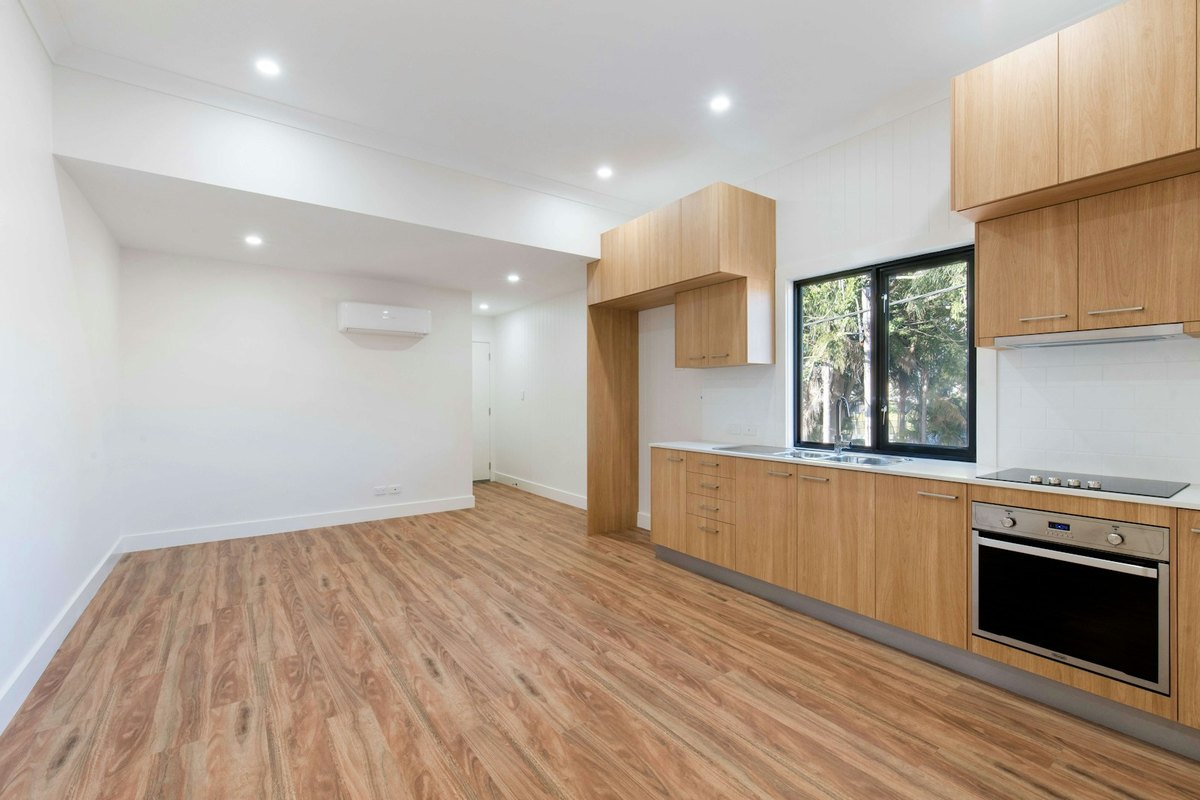
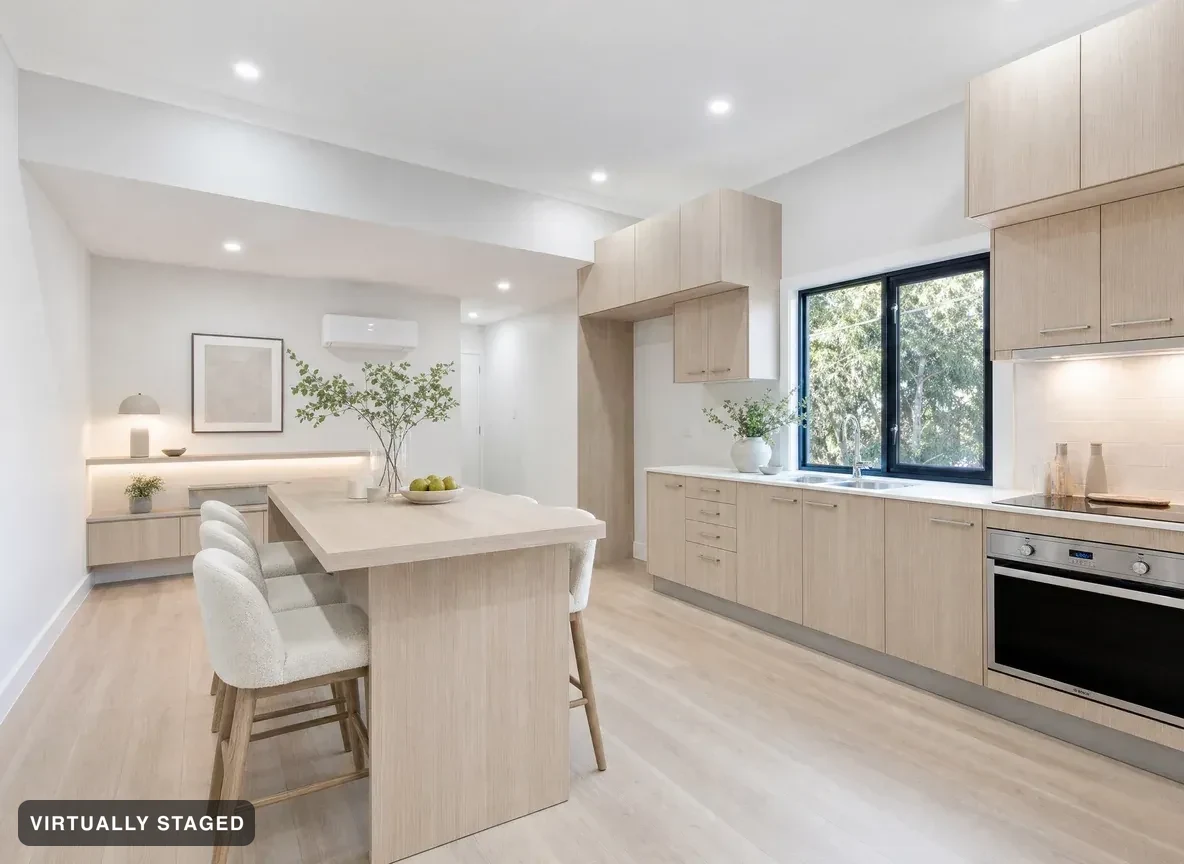 BeforeConcept
Ideas that may change walls and layout. Labeled as concepts — never listing media.
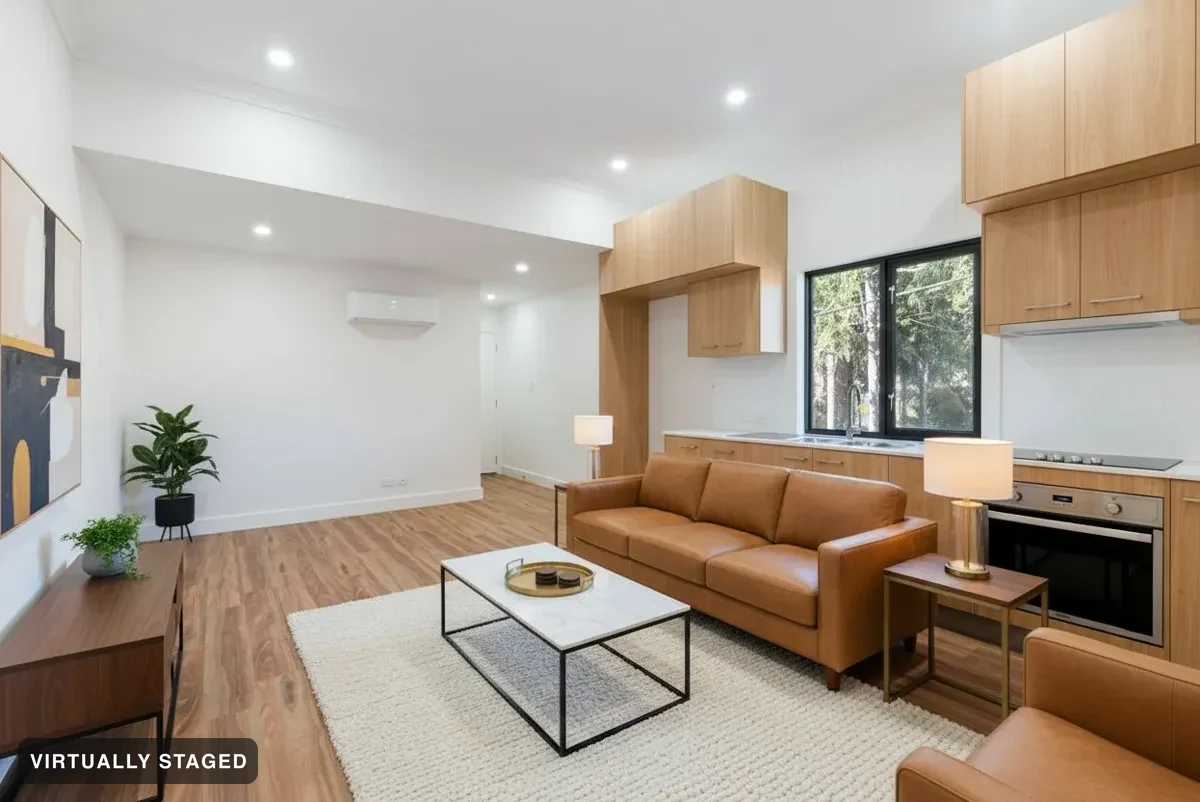
Pro and Ultra include a page you can send to buyers. Ultra adds link activity.
Browse a live one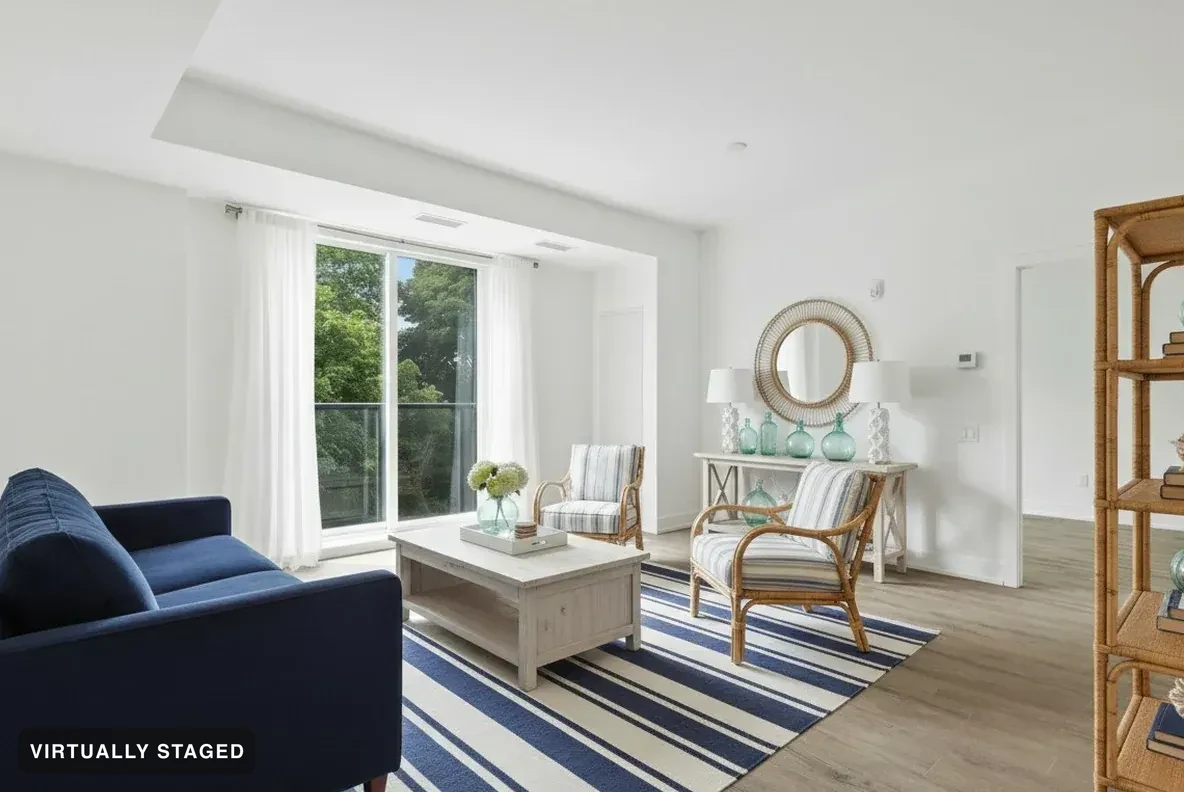
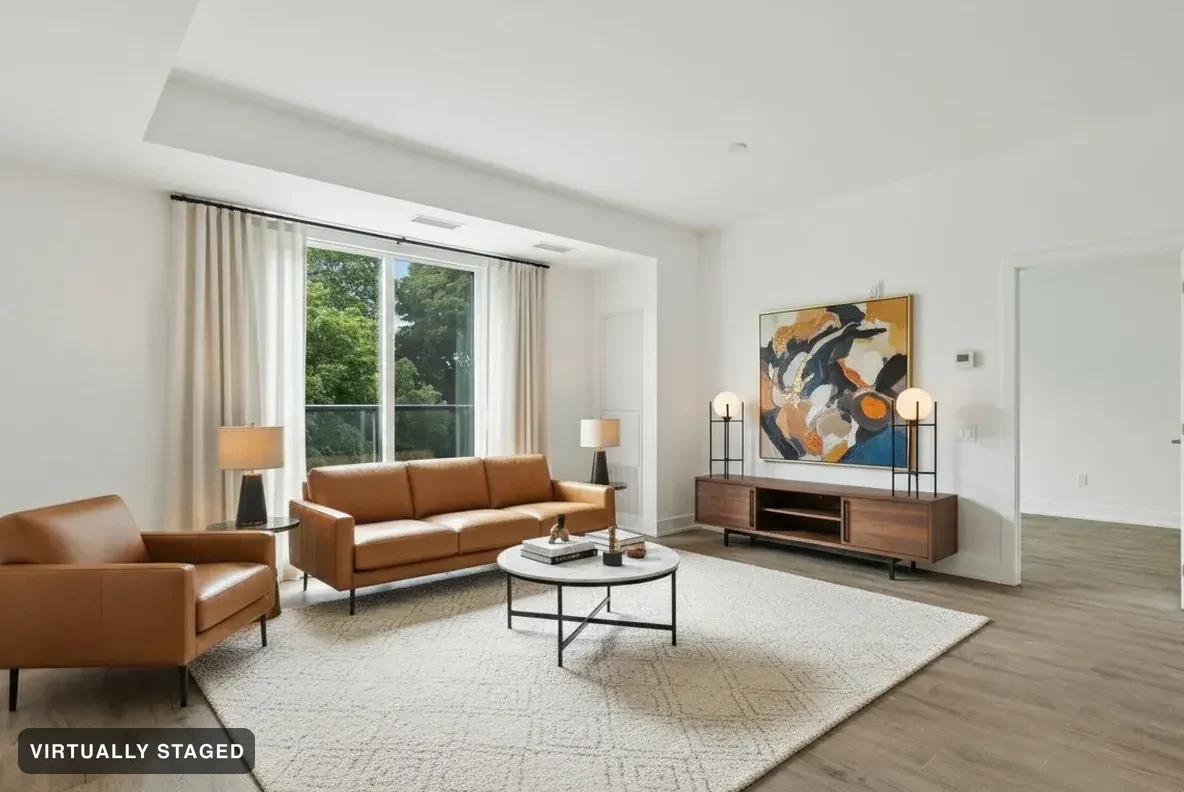 CoastalTan leather
Buyers restyle rooms themselves, right on your page.
Every render is checked against your original photo — see three we refused → · browse a live buyer page →
Add your photo, choose what to change, then create your image. You can go back at any step.
This sets the rules we render under. You can change it later under Settings.
Different rules apply outdoors — the building, fences and property lines never change.
Next, add your own photo.
Choose your room or outdoor space. We’ll keep your original.
Watch the room photos to see what each tool does. These are examples. Your result will use your photo.
Choose the space and action. Nothing is selected for you.
Choose a look. We’ll use it on your photo.
Ready? Choose Continue with my description. You can skip every suggestion below.
Need an idea? These starting points are optional.
Examples for your room or area — not your result. Choosing a look does not allow more changes.
Browse all style inspiration ↗ · Opens in a new tab. Your choices stay here.
Tap the colour box, or type a colour below. The text box shows what we’ll use. Screen colours are a guide.
We use your words to work out what may change. The property stays protected, and you review before creating an image.
Your description is enough. Fill in only what you want to add or limit.
No matching example for this combination yet. Your result will use your own photo.
Keep walls, windows, floors and fixed fittings.
Pick the one thing you want changed.
Pick the room that fits your photo.
AI room ideas. Your photo sets the space.
Choose a business space, or describe your own below.
We furnish it for how that space is actually used.
Drag along the day. The building, its lines and its finish never change — only the sky and the light.
Every one of these is labelled virtually staged in the image, because the light is not the light the camera saw.
Eight looks, every one obeying the same rule: furniture and decor only. One look = one image on the free plan.
Pick up to 3 looks free — each one is its own image.
Tap the colour to open the picker. Already know the colour? Enter its hex code below.
The example shows one colour idea for this room. Your chosen colour is used on your photo. Screen colours are a guide.
You can add your photo now, then tell us what to change.
Check your photo and choices, then create your image.
Your original · No image made yet
Photos ready. Add more above, or continue below.
Choose a photo. One photo in one look makes one image.
Your photo stays on this device until you create an image. We then send it to make and check the result.
Optional. Skipping it changes nothing else.
Check My designs before starting these photos again. A lost reply does not mean the job failed.
Your saved designs are here. Compare with your original, make a change or download your photos.
What would you like to do next?
Keep your original photo and choices, then try another look. Nothing starts until you press Create.
Send the photos you already have. Every render is checked against your original — walls, windows and floors never change. Your first 3 images are free.
Tap the thing you want changed, then say what to do with it. Walls, windows and floors always stay as photographed.
Every edit is checked against your original before you see it.
Sedam Staging
Founding pricing
Prices in CAD. Set for your location. Any tax is shown before you pay.
3 free images, once — one photo in one look is one image. Spend them your way: three rooms in one look, or one room in three. Watermarked previews, and they do not reset.
Use a credit on your next upload. Up to 20 photos in one chosen look, with originals, a buyer page and listing files. It does not unlock an older free listing.
10 images reset every 7 days from the start of your plan. Unused images do not roll over.
$5.99, charged every week until you cancel. Cancel in Billing before your next payment.
Pro adds listing files and a buyer page.
Pro and Ultra payment period
Real estate, interior decor, property management and more.
Billed $290/year upfront · monthly equivalent shown
2 months free · Save $58 a year vs paying monthly
That’s about 24¢ an image at a hundred a month.
Billed $790/year upfront · monthly equivalent shown
2 months free · Save $158 a year vs paying monthly
For professionals who need more images and buyer page tools.
The walls-don’t-move guarantee: if a published render ever changes your room’s structure — a wall, a window, a door, the view — your month is free, and if it reached your marketing, your next 12 months are on us. How it works.
Cancel your web plan from Billing. It stays active until the end of the period you paid for. Founding prices are locked while you stay subscribed.
How we check your photos
What we refuse
ChatGPT stages rooms. It also moves walls. Ask it to stage your photo and count the tries until the room is still your room — every try, you’re the inspector. Here, a second AI inspects every image against your photo and throws away the ones that lie. You never see them.
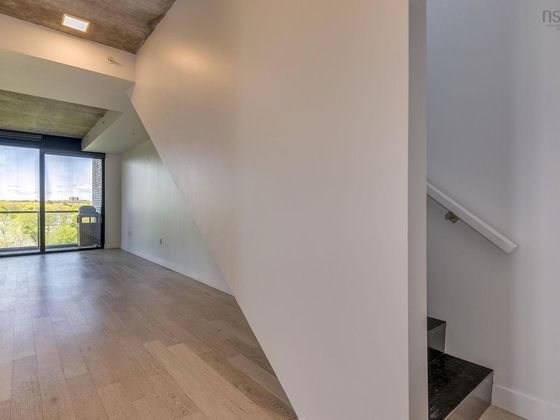
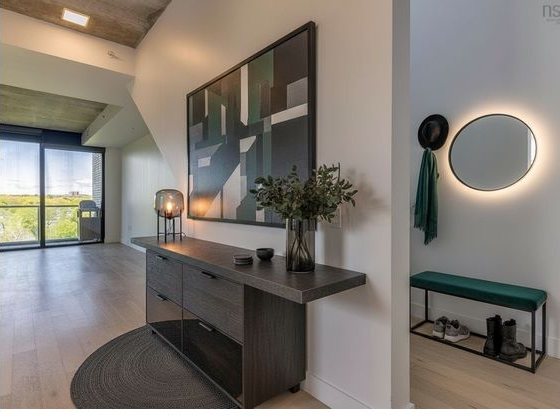
A refused render is re-rolled. If it keeps failing, we tell you — we don’t ship it. Pro, Ultra and single-listing download kits include a QR link to the originals. Personal downloads keep the originals but have no buyer QR.
See the full refusal gallery →
Your properties, your files and your pages stay with your account. Sign in to save your work. Privacy · Terms
Create an account · Forgot password
Open the newest email for . Check spam too. Follow its steps, then come back here to sign in.
Your photo stays on this device for up to 45 minutes if the draft was saved.